
Best DNS Settings for Nintendo Switch in 2026
The best DNS settings for Nintendo Switch and Switch 2 in 2026: tested resolver pairs, manual setup on the console, eShop and download notes, NAT type facts, and how to verify the change helped.

Networking Editorial
Quick Answer
The best DNS settings for a Nintendo Switch in 2026 are Cloudflare (1.1.1.1 primary, 1.0.0.1 secondary) or Google Public DNS (8.8.8.8 and 8.8.4.4). Cloudflare typically resolves fastest across Europe and North America; Google is the steadier fallback on older ISP lines. A faster resolver shortens eShop loading and the handshake before a download or online match starts. It does not raise your line's download speed, and it does not change NAT type.
What DNS Actually Changes on a Switch
DNS is the lookup step before any connection. The console has to turn hostnames like ecs lp1.hac.shop.nintendo.net into IP addresses before it can show the eShop, sign into Nintendo Switch Online, or pull an update. Your ISP resolver handles that by default, and on many home lines it is slow or congested in the evening.
The Switch is more sensitive to this than a PS5 or Xbox because its Wi Fi radio and CPU are modest. When the eShop feels like it is hanging on a blank screen, a large share of that wait is lookups and TLS setup rather than raw bandwidth. That is exactly the part a faster resolver trims.
Best DNS Servers for Nintendo Switch in 2026
| Resolver | Primary | Secondary | Best for |
|---|---|---|---|
| Cloudflare | 1.1.1.1 | 1.0.0.1 | Lowest lookup times in most of Europe and North America |
| Google Public DNS | 8.8.8.8 | 8.8.4.4 | Consistent worldwide; reliable fallback |
| Quad9 | 9.9.9.9 | 149.112.112.112 | Blocks known malicious domains; marginally slower |
| Cloudflare Family | 1.1.1.3 | 1.0.0.3 | Filters adult content on a child's console |
| OpenDNS FamilyShield | 208.67.222.123 | 208.67.220.123 | Household filtering without an account |
No single pair wins everywhere. The fastest resolver depends on which datacentre your ISP peers with. Test two pairs, keep the better one, and stop there; the gap between the top two is usually a few milliseconds.
How to Change DNS on a Nintendo Switch, Step by Step
Open internet settings
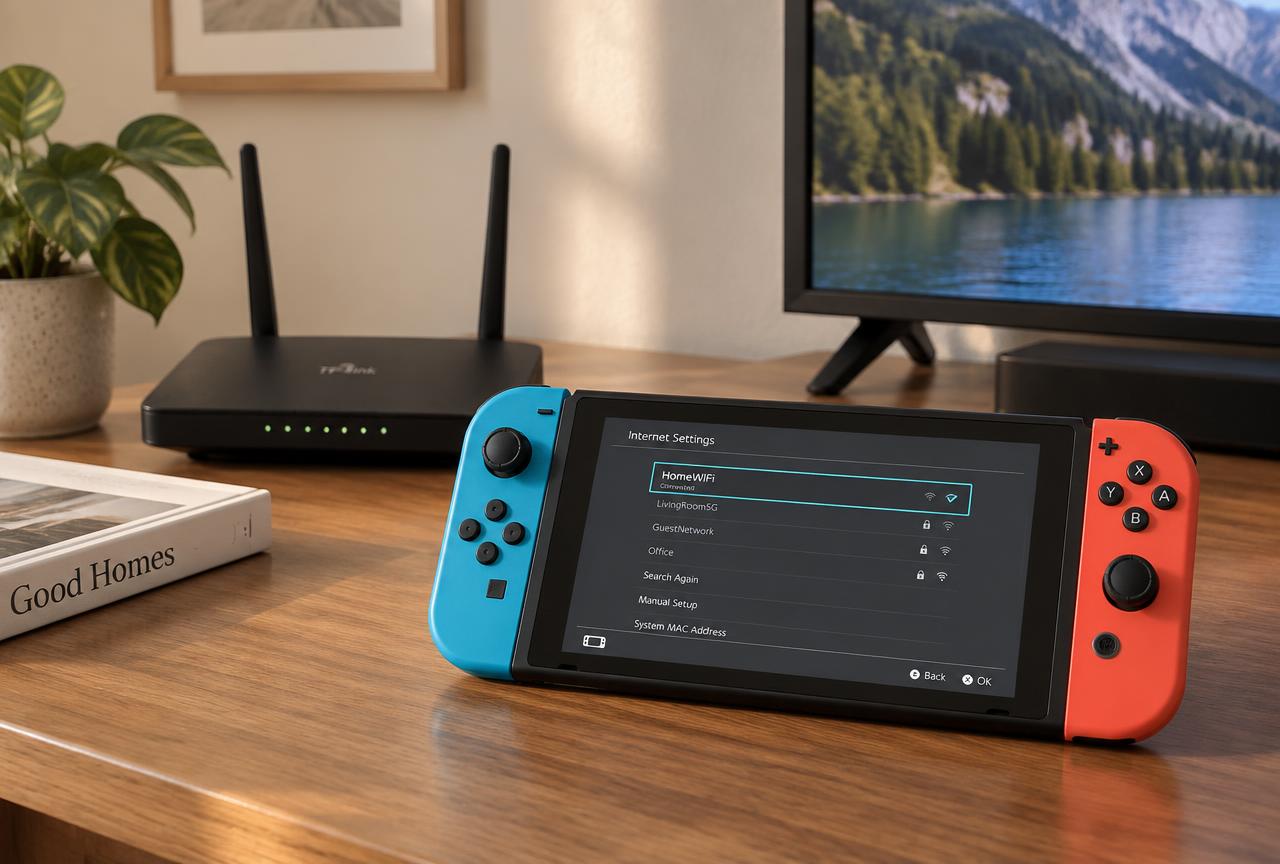
From the Home menu go to System Settings, then Internet, then Internet Settings. Wait for the network list to populate.
Select your network
Choose the Wi Fi network you normally use, then select Change Settings. If you use a wired LAN adapter in the dock, select the wired connection entry instead.
Set DNS to Manual
Scroll to DNS Settings and change Automatic to Manual. Leave IP Address Settings on Automatic unless you already run a DHCP reservation.
Enter the addresses
Primary DNS 1.1.1.1 and Secondary DNS 1.0.0.1 for Cloudflare, or 8.8.8.8 and 8.8.4.4 for Google. Enter both; leaving the secondary blank causes a retry delay when the primary is busy.
Save and connect
Press Save, then Connect to This Network. You should see Connection Test succeed. Run System Settings, Internet, Test Connection and note the NAT type and download figure.
Repeat per network
The Switch stores settings per saved network. If you play on both home Wi Fi and a second network, apply the same values to each one.
How to Tell Whether It Helped
Measure before you change anything, then measure again with the same three checks.
- eShop cold start: close the eShop fully, reopen it, and time how long the front page takes to draw. Do it twice before and twice after.
- Update start time: begin a game update and time how many seconds pass before the progress bar moves, not how long the download takes.
- Connection test: run the console's own Test Connection three times and compare the average, never a single run.
If nothing improves, set DNS Settings back to Automatic. A manual resolver that gives you nothing is just one more thing to debug the next time something breaks.
Why Switch Downloads Are Slow Even With Good DNS
The Switch caps out well below a modern console on wireless. Its built in radio is 802.11ac on a single band at a time, and in handheld mode the antenna sits behind your hands. If your downloads sit at a fraction of your plan, the resolver is rarely the reason.
| Symptom | Likely cause | Actual fix |
|---|---|---|
| eShop hangs on a blank page | Slow DNS resolution | Set a manual resolver as described above |
| Download far below plan speed | Wi Fi band and distance | Dock the console and use a USB LAN adapter, or move to 5 GHz |
| NAT Type C or D | Router firewall, UPnP off, double NAT | Enable UPnP, forward ports, remove the second router |
| Laggy online matches | Route and distance to the host | Use wired docked play; avoid peak congestion |
| Random drops in handheld mode | Signal strength and interference | Move closer to the router; switch Wi Fi channel |
Common Mistakes
- Mixing providers as primary and secondary. Keep both addresses from the same operator so failover behaves predictably.
- Setting one resolver on the console and a different one on the router, then guessing which applies. The console setting wins for the console; keep them consistent.
- Copying a 'gaming DNS' IP from a video. Many of those addresses are long dead, and a dead primary makes everything feel slower.
- Expecting DNS to unlock another country's eShop. Region comes from the Nintendo Account, not the network.
- Applying the change to one saved network and testing on another. Settings are stored per network entry.
Setting DNS on the Router Instead
If you want every device in the house on the same resolver, set it once in the router's DHCP or WAN settings rather than per console. The upside is one place to change later and consistent behaviour for the Switch on any saved network. The downside is that one typo takes the whole network offline, so write down the original values before editing. Router level Smart DNS entries are the usual path for region changes, and the trade offs are covered in the Smart DNS comparison guide.
A Note on Privacy
Your resolver sees every domain the console requests. Moving from your ISP to Cloudflare or Google moves that visibility rather than removing it. The Switch has no support for encrypted DNS, so lookups leave the console in plain text on the local network either way. If the goal is keeping household traffic away from your ISP, that is a router level VPN job, not a resolver change.
Frequently Asked Questions
What is the best DNS for Nintendo Switch downloads?
Cloudflare (1.1.1.1 / 1.0.0.1) in most regions, with Google (8.8.8.8 / 8.8.4.4) as the alternative. Both shorten lookup time so downloads and the eShop start sooner. Neither raises the peak speed of your connection.
Does changing DNS make Switch downloads faster?
It makes them start faster and makes the eShop feel responsive. The transfer rate itself is set by your line, your Wi Fi link, and Nintendo's CDN, so expect a snappier console rather than a higher megabits per second figure.
Will DNS fix NAT Type D on my Switch?
No. NAT type is decided by how your router handles inbound connections. Enable UPnP, forward the ports your games need, and make sure you are not behind two routers or carrier grade NAT.
Is 1.1.1.1 safe to use on a Switch?
Yes. It is a widely used public resolver from Cloudflare. If you want malware filtering, Quad9 (9.9.9.9) is the equivalent; 1.1.1.3 adds adult content filtering for a child's console.
How do I undo the change?
System Settings, Internet, Internet Settings, pick the network, Change Settings, then set DNS Settings back to Automatic and save. The console returns to your ISP resolver immediately.
Do I need to set DNS again for the Switch 2?
Yes. Settings are stored per console and per saved network, so a new console starts on Automatic. The menu path and the recommended addresses are the same.
Should I set DNS on the console or the router?
On the console if only the Switch needs it, on the router if you want the whole household covered. Avoid setting conflicting values in both places.