
Best DNS Settings for PS5 in 2026: Faster Downloads, Lower Ping
The best DNS settings for PS5 in 2026, with tested server pairs, step-by-step setup on the console, NAT type notes, and how to check whether the change actually helped.

Networking Editorial
Quick Answer
The best general purpose DNS settings for a PS5 in 2026 are Cloudflare (1.1.1.1 as primary, 1.0.0.1 as secondary) or Google Public DNS (8.8.8.8 and 8.8.4.4). Cloudflare usually resolves fastest in Europe and North America; Google is the more consistent fallback on older ISP lines. Changing DNS speeds up the time it takes for the console to find a server, which shortens store loading and matchmaking handshakes. It does not raise the raw download speed your line already delivers, and it does not change your NAT type.
What DNS Actually Changes on a PS5
DNS is the lookup step. Before your console downloads a patch or joins a lobby, it has to translate a hostname such as gs2.ww.prod.dl.playstation.net into an IP address. Your ISP's resolver does that by default, and on many consumer lines it is slow, overloaded in the evening, or geographically far from you. A faster resolver removes tens to hundreds of milliseconds from every one of those lookups.
That matters because a single game session makes a lot of lookups: the PlayStation Network sign in, the store front page, the game's own back end, the anti cheat service, telemetry, and the CDN that actually serves the patch bytes. Trimming each lookup is why a DNS change feels like a snappier console even though the line speed is unchanged.
Best DNS Servers for PS5 in 2026
| Resolver | Primary | Secondary | Best for |
|---|---|---|---|
| Cloudflare | 1.1.1.1 | 1.0.0.1 | Lowest lookup times in most of Europe and North America |
| Google Public DNS | 8.8.8.8 | 8.8.4.4 | Very consistent worldwide; good fallback |
| Quad9 | 9.9.9.9 | 149.112.112.112 | Blocks known malicious domains; slightly slower |
| OpenDNS | 208.67.222.222 | 208.67.220.220 | Household filtering options via a free account |
| Cloudflare Family | 1.1.1.3 | 1.0.0.3 | Blocks adult content on shared family consoles |
There is no single winner for every household. The resolver that is fastest for you depends on which datacentre your ISP peers with. Test two pairs, keep the one that measures better, and move on; the difference between the top two is usually small.
How to Change DNS on a PS5, Step by Step
Open the network settings
From the home screen go to Settings, then Network, then Settings, then Set Up Internet Connection.
Pick your connection
Highlight the Wi Fi network you use, or the LAN cable entry, press the Options button, and choose Advanced Settings. A wired connection is preferable if the console is near the router.
Switch DNS to Manual
Set DNS Settings to Manual. Leave IP Address Settings on Automatic unless you already run a static IP reservation.
Enter the addresses
Primary DNS 1.1.1.1 and Secondary DNS 1.0.0.1 for Cloudflare, or 8.8.8.8 and 8.8.4.4 for Google. Type them exactly; the console will not validate a typo until the connection test runs.
Save and test
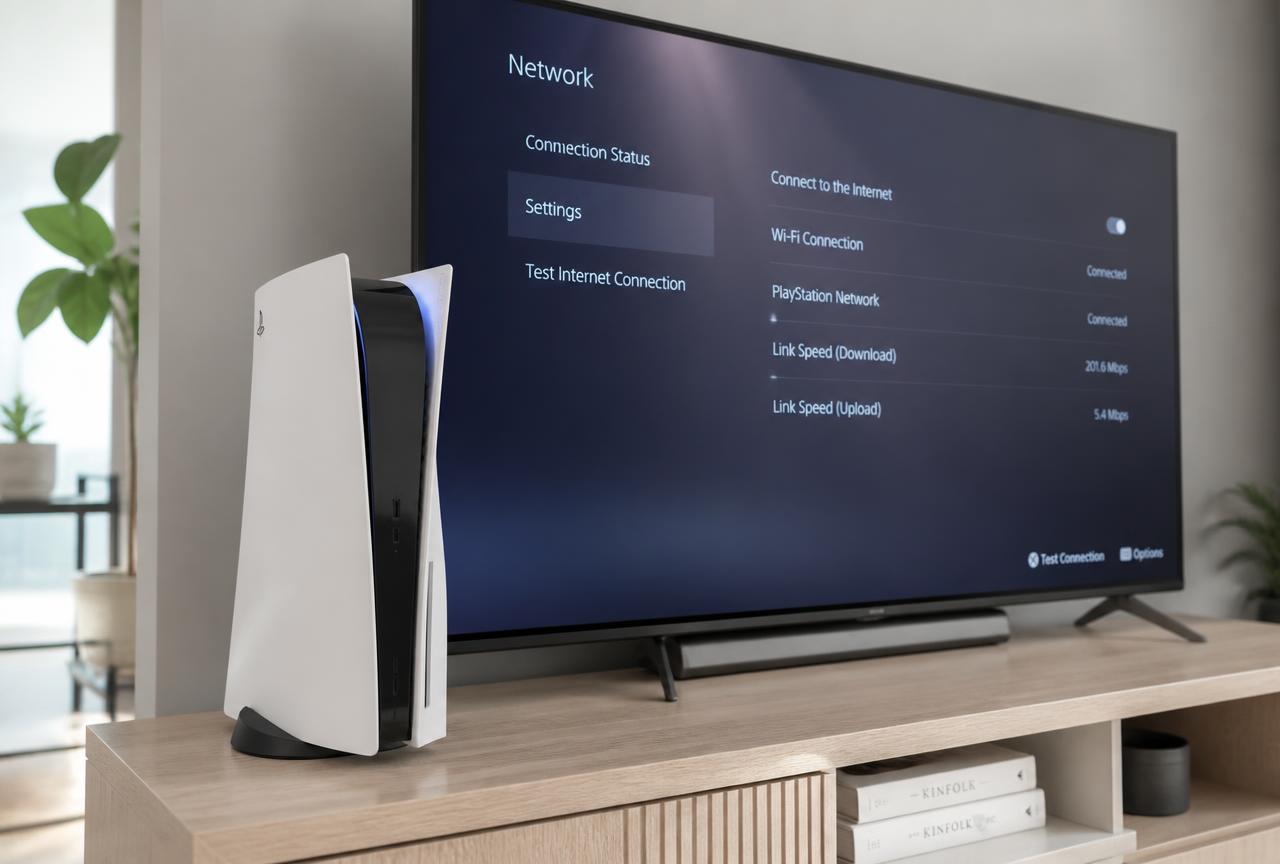
Save the settings, then run Test Internet Connection. You want Internet Connection: Successful and PlayStation Network: Successful. Note the download and upload figures it reports.
Restart the console
A full restart clears cached lookups so the new resolver is actually used from the next session onward.
How to Tell Whether It Helped
Measure before you change anything, then measure again. Three checks are enough, and each takes under a minute.
- Store responsiveness: time how long the PlayStation Store front page takes to fully draw, twice, before and after.
- Matchmaking: note how long a standard online match takes to find a lobby in the game you play most.
- Connection test: run the console's own Test Internet Connection three times and compare the average download figure, not one single run.
If nothing improves, revert DNS Settings to Automatic. The bottleneck is elsewhere, and keeping a manual resolver that gives you nothing only adds a thing to debug later.
DNS, NAT Type, and Ping: Three Different Problems
People often change DNS hoping to fix a Strict NAT or high in game ping. These are separate layers, and it helps to know which one you are actually fighting.
| Symptom | Cause | Actual fix |
|---|---|---|
| Slow store, slow patch start | Slow DNS resolution | Change DNS as described above |
| NAT Type 3 / Strict | Router firewall and port mapping | Enable UPnP, or port forward, and remove double NAT |
| High ping in matches | Route and distance to the game server | Use a wired connection; pick a closer server region |
| Random disconnects | Wi Fi interference or line instability | Move to Ethernet; check for packet loss with your ISP |
| Download speed far below your plan | Wi Fi band, congestion, or CDN throttling | Use 5 GHz or Ethernet; download during off peak hours |
Common Mistakes
- Mixing two different providers as primary and secondary. Keep the pair from one operator so failover behaves predictably.
- Setting DNS on the console and a different DNS on the router, then wondering which one applies. The console setting wins for the console; keep them consistent.
- Copying a random 'gaming DNS' IP from a video. Many of those addresses are dead, and a dead resolver means the console falls back and feels slower than before.
- Expecting a resolver change to unblock a region locked store. It will not; store region is tied to the account, not to DNS.
- Changing five things at once. Change DNS only, test, then move to the next variable.
Setting DNS on the Router Instead
If you want every device in the house to use the same resolver, set it once in the router's DHCP or WAN settings rather than on each console. The upside is consistency and one place to change later. The downside is that a mistake takes the whole network offline, so note the original values before you edit them. For consoles that also need a region change, a router level Smart DNS entry is the usual approach, and that is covered in the Smart DNS comparison guide.
A Note on Privacy
Your resolver sees every domain your console asks for. Moving from your ISP to Cloudflare or Google moves that visibility, it does not remove it. The PS5 does not support encrypted DNS natively, so lookups leave the console in plain text on the local network either way. If the goal is to keep browsing and gaming metadata away from your ISP entirely, a VPN on the router is the mechanism that does that, not a public resolver.
Frequently Asked Questions
What is the best DNS for PS5 downloads?
Cloudflare (1.1.1.1 / 1.0.0.1) in most regions, with Google (8.8.8.8 / 8.8.4.4) as the alternative. Both shorten lookup time, which makes downloads start sooner. Neither raises the peak speed of your line.
Does changing DNS lower ping on PS5?
Not directly. Ping is decided by the route between your console and the game server. DNS only affects how quickly the address is looked up before the connection is made, so matchmaking can feel faster while in match ping stays the same.
Will DNS change my NAT type?
No. NAT type comes from how your router handles inbound connections. Enable UPnP or forward the ports your games need, and remove any second router in the chain.
Is it safe to use 1.1.1.1 on a console?
Yes. It is a public resolver run by Cloudflare and widely used. If you want malware filtering instead, Quad9 (9.9.9.9) is the equivalent option, and 1.1.1.3 adds adult content filtering for a family console.
How do I undo the change?
Go back to Settings, Network, Settings, Set Up Internet Connection, choose your connection, Advanced Settings, and set DNS Settings back to Automatic. The console returns to your ISP resolver immediately.
Should I set DNS on the PS5 or on the router?
On the console if only the PS5 needs it, on the router if you want the whole household on the same resolver. Do not set conflicting values in both places.